Blog · October 26, 2026
Branded QR and Short Link Before the First Boat: How a Harbor Oyster Cart Launched on SkyCanvas in Ten Minutes
A pop-up oyster shucking cart in Portsmouth needed a trackable link and a brand-matched QR for its sandwich-board sign before the first ferry docked. Here is the whole setup, click by click.
Marin Alder parks her sailmaker’s cart on the Portsmouth boardwalk a little before seven. The ferry from the islands comes in at eight-fifteen, and by eight-thirty she wants a line. The cart is small, the oysters are from Great Bay, and the sign out front is a chalkboard sandwich-board with a chalk drawing of a half-shell. For most of the summer that was enough. People walked up, pointed at the chalkboard, and ate.
The trouble started when wedding planners began finding her. Three in two weeks asked for a card, a link, something they could screenshot and send to a bride. Marin had been handing out her personal phone number on a scrap of receipt paper. On a Saturday morning, standing by the cart with a cold brew in one hand and her phone in the other, she decided to fix it before the first boat came in.
She needed one thing to work: a short, trackable link to her booking page, and a QR code in her own navy and brass colors that she could tape to the top of the sandwich-board. Nothing fancy, nothing designed. Just a scan that worked and a URL she could say out loud. Here is how she set it up on SkyCanvas before the ferry docked.
- Open SkyCanvas and sign up free
Marin pulled up skycanvas.online on her phone, propped against the pickle jar on the cart. The homepage lays out what the toolkit does: short links, branded QR codes, marketing materials, and conversion tracking, all free to start.
The SkyCanvas homepage at skycanvas.online, showing the free marketing toolkit for small businesses. (https://skycanvas.online/uploads/blog/harbor-oyster-cart-short-link-brand-qr-ten-minutes/01-home.png)
She tapped Get started. For a one-cart business, the free account is all she needed. No pricing tiers, no card. She picked a username that matched the cart, typed her email, and set a password.
- Create the account
The signup form is short on purpose. Email, username, password, and a signup button. If you would rather use Google, GitHub, or Microsoft, the OAuth buttons are right there. Marin used email so the account would live under her business inbox.
The SkyCanvas signup page with the account form filled in, showing email and username fields ready to submit. (https://skycanvas.online/uploads/blog/harbor-oyster-cart-short-link-brand-qr-ten-minutes/02-register.png)
One tap and she was in. No confirmation email bounce, no setup wizard trying to upsell her. The next screen is the dashboard.
- Land on the dashboard
The dashboard is the home base. Across the top are KPI tiles for total clicks, QR scans, conversions, and links in the account. Below that is a daily activity chart that will fill in as traffic starts rolling in. For a brand-new account everything is at zero, which is honest and also a little motivating.
The SkyCanvas dashboard with KPI tiles for clicks, QR scans, conversions and links, plus the daily activity chart. (https://skycanvas.online/uploads/blog/harbor-oyster-cart-short-link-brand-qr-ten-minutes/03-dashboard.png)
Marin skipped past the profile for now. She could fill that in later, in the lull after lunch. First she needed the link.
- Fill in the new short link form
From the dashboard she tapped Links in the side navigation and then New short link. The form has four fields that matter:
- Destination URL: where the scan or click should land. She pasted her booking page, https://tidelineshuck.example.com/book.
- Title: a short label for the link so she can find it later. She typed “Book Tideline Shuck”.
- Description: one line of context for her own records. She wrote that it was for the raw bar cart on the seacoast.
- Custom slug: the ending of the short URL. She typed shuck, so the public link would be skyc.online/shuck. Easy to say over the counter, easy to spell on the back of a receipt.
On the right side of the form, a live QR preview updated as she typed. The preview is useful because it is the same QR that will come out of the system, so you know exactly what people will be scanning before you commit.
The new short link form filled in with destination URL, title, description and custom slug “shuck”, with the live QR preview on the right. (https://skycanvas.online/uploads/blog/harbor-oyster-cart-short-link-brand-qr-ten-minutes/04-link_new.png)
She tapped Create.
- Grab the short URL and the QR
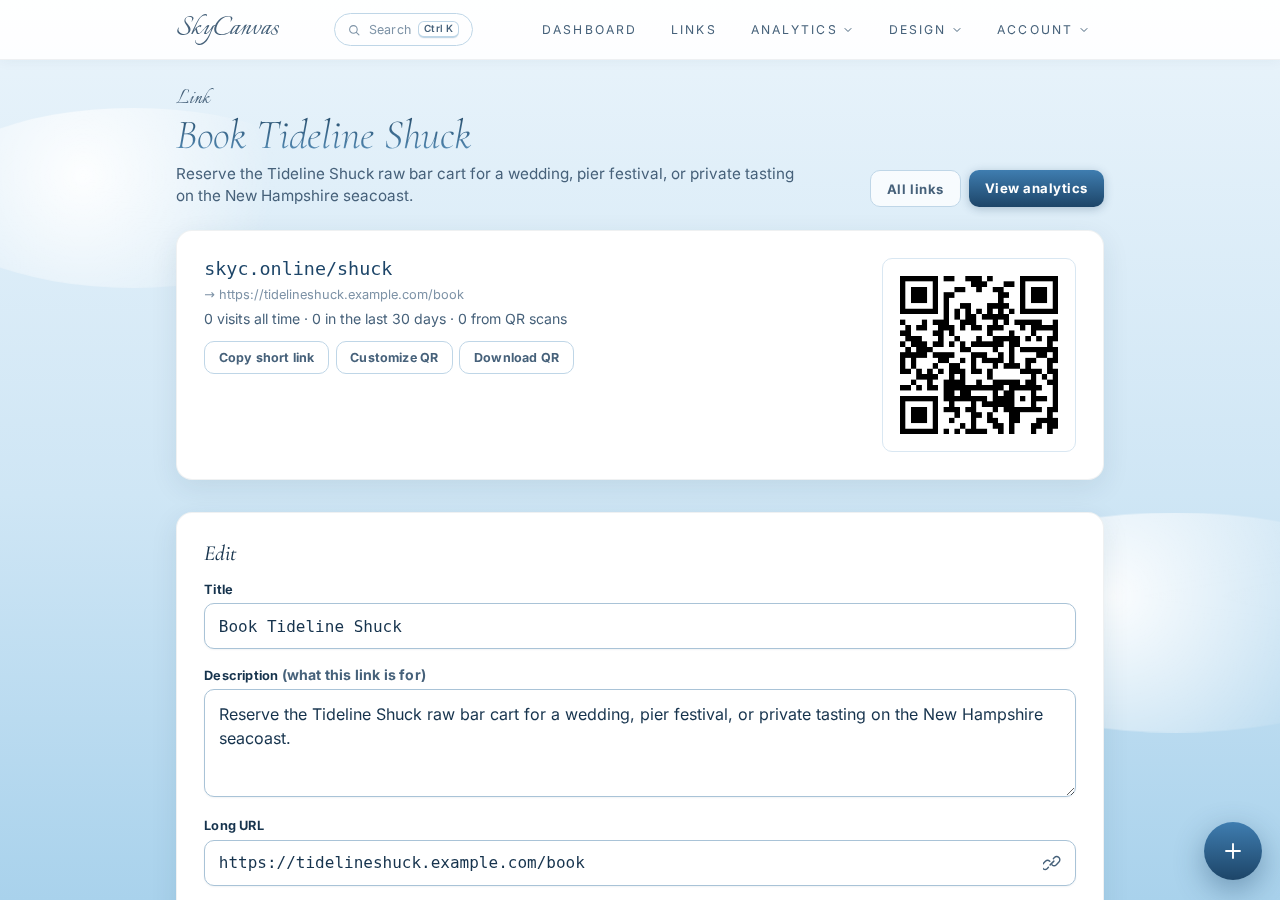
The link detail page is where the small business work actually happens. SkyCanvas shows the short URL in big friendly text at the top: skyc.online/shuck. Below that is the destination, so you can double-check it points where you think, and the QR code with a Download PNG button.
The link detail page after creating the short link, showing the skyc.online short URL, the destination, and the generated QR code ready to download. (https://skycanvas.online/uploads/blog/harbor-oyster-cart-short-link-brand-qr-ten-minutes/05-link_created.png)
Marin could have stopped right there. The link worked, the QR was downloadable, and the ferry still had twenty minutes to go. But the default QR is black on white, and the cart is navy and brass. A plain black square on a chalkboard sandwich-board would read as noise. If she was going to tape something to that board, she wanted it to look like it belonged.
- Customize the QR in the brand colors
Still on the link page, she opened the QR style options. SkyCanvas gives you real control over the look of the code without breaking what makes it scannable:
- Foreground color, with an optional second color for a gradient.
- Background color.
- Module style, so the dots can read as rounded or square.
- Error-correction level, which affects how much the center logo area can absorb without the code failing.
She set the foreground to her deep harbor navy, #0C3E58, with a brass second color, #B88542, flowing into it. The background stayed clean white so it would still work on the chalkboard, under tape, in sunlight. The preview updated live, scan by scan simulated right on the page.
The QR code style editor with brand colors applied to the QR modules and a live preview. (https://skycanvas.online/uploads/blog/harbor-oyster-cart-short-link-brand-qr-ten-minutes/06-qr_custom.png)
She tapped Download PNG, airdropped the file to her phone, and walked it over to the shipping store on Market Street to print four copies at four by four inches on sticker paper. One for the sandwich-board, one on the cart, one in her apron pocket, and one for her binder of planner leads.
What changed for the cart
By the time the ferry docked, there was a brass-and-navy QR on the top corner of the chalkboard and a short URL she could say out loud, skyc.online/shuck, when someone asked for a card. Two scans came in during the lunch rush. One of them was a wedding planner who stayed for a dozen Great Bay belons and sent a venue inquiry from the ferry back. Marin saw the scan show up on the dashboard before the planner even wrote.
The real win is simpler than analytics. She stopped handing out her personal phone number on receipt paper. The sandwich-board does the warm handoff now, and the dashboard tells her which weekends to work.
If you are running a cart, a booth, a pop-up, or any kind of small business that lives at the edge of a sidewalk, you can set up the same way in about ten minutes. Create a free SkyCanvas account, make your first short link, and style the QR so it looks like you.
Tideline Shuck is a fictional business we created to show a real SkyCanvas workflow. Every screenshot is real, captured live while writing this guide.