Blog · September 30, 2026
One Counter QR, Every Flavor: How a Paleta Cart Keeps Its Menu Current
A paleta cart needed one counter QR code that could keep up with changing fruit flavors and sold-out specials. See how its owner created a branded short link, customized the QR, and used scan data to understand customer interest.
Marisol Vega’s paleta cart had a delicious problem. The flavors changed faster than her printed menu could keep up. Mango chile might sell out during the lunch rush, while a fresh batch of strawberry lime could appear the next morning.
At Sol y Fruta Paletas in Tucson, that daily variety was part of the charm. It also meant crossed-out signs, handwritten additions, and customers asking which flavors were actually available. Marisol wanted one counter QR code that could always lead people to the current menu.
Her solution was a branded SkyCanvas short link pointing to the cart’s online flavor page. The page could change as often as needed, while the short URL and printed QR stayed the same. Here is the complete workflow.
1. Build the business profile
Marisol began with the SkyCanvas business profile. From the account menu, she opened Profile and added the details that would give her account a clear business identity.
She entered:
-
Display name: Marisol Vega
-
Location: Tucson, United States
-
Company name: Sol y Fruta Paletas
-
Tagline: Bright fruit, frozen fresh
-
Industry: Frozen Desserts
-
Services: Handmade fruit paletas, creamy frozen bars, seasonal specials, and event catering
-
Audience: Families, downtown workers, festival visitors, and event planners
She also added the company website and a short description explaining that the menu changes throughout the week as flavors sell out and fresh ingredients arrive. Then she selected Save changes.
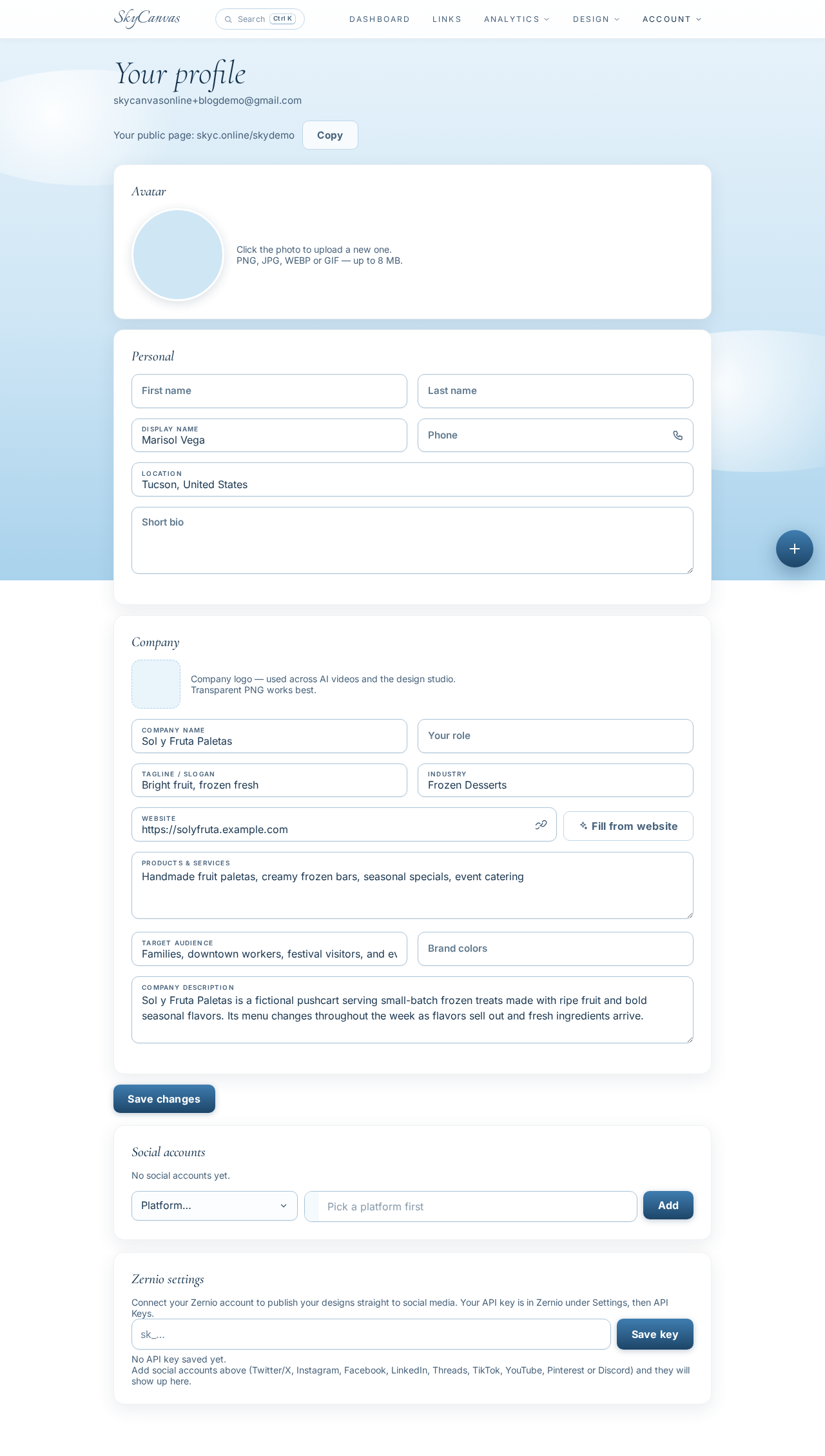
The profile gave Marisol a useful home base for the business information she would use across SkyCanvas. It also captured the practical reason for this project: a changing menu is a feature for a small-batch food cart, so the customer-facing link needed to be just as flexible.
2. Create a short link for today’s flavors
Next, Marisol opened Links and chose the option to create a new short link. The destination was the menu page on the cart’s website:
https://solyfruta.example.com/todays-flavors
She titled the link Today’s Paleta Flavors and added a plain description: “See today’s available fruit paletas, creamy flavors, prices, and sold-out updates.”
For the custom slug, she entered sol-fruta-menu. That gave her a short address that was easy to recognize and say aloud: skyc.online/sol-fruta-menu.
The QR preview on the right updated while she filled in the form, letting her confirm that the destination and QR were connected before creating the link.
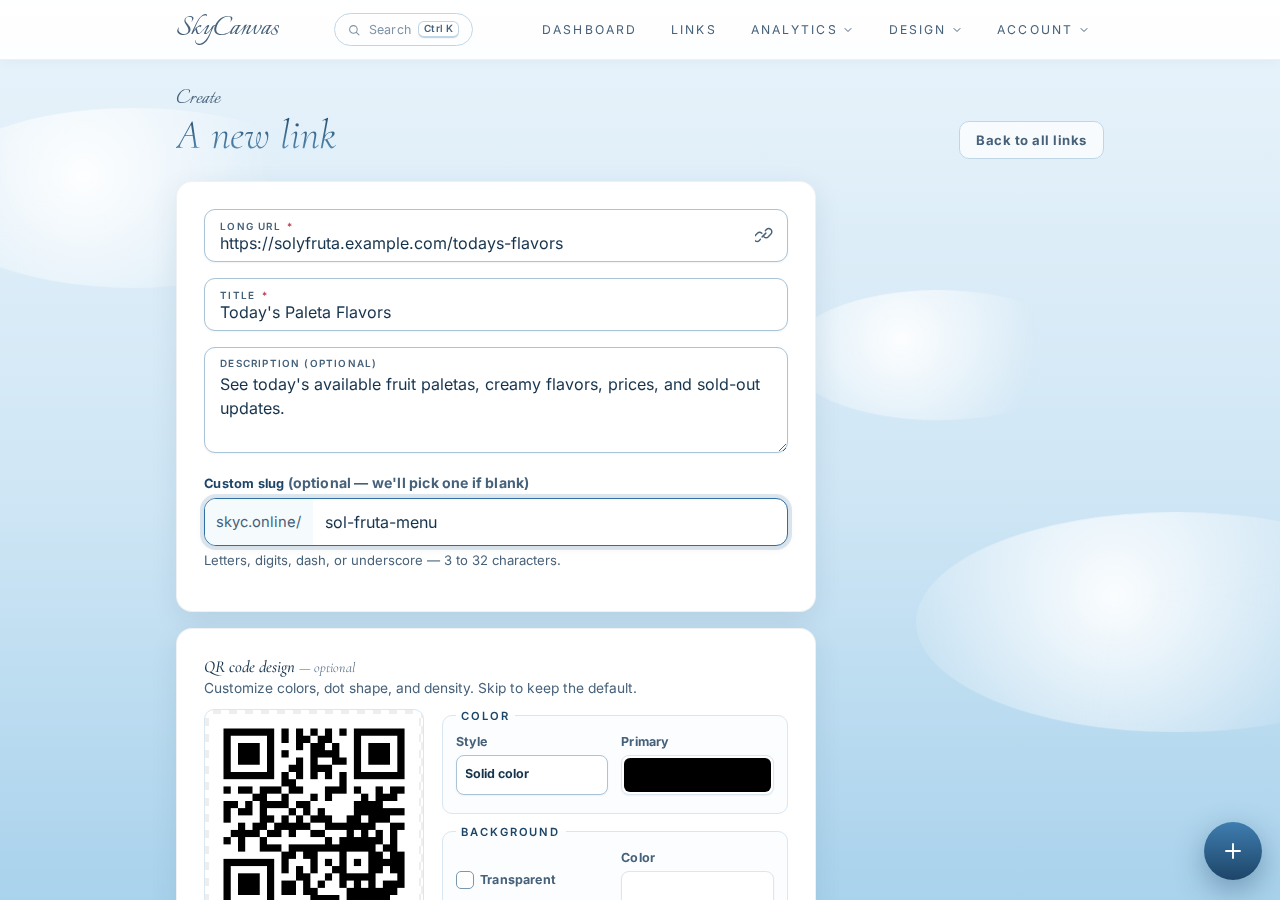
A descriptive title matters when several links eventually live in one account. The custom slug also made this link easier for Marisol to identify as the cart’s permanent menu route.
3. Confirm the link and download-ready QR
After creating the link, SkyCanvas opened its detail page. Marisol could see the short URL, the full destination, and the generated QR code together.
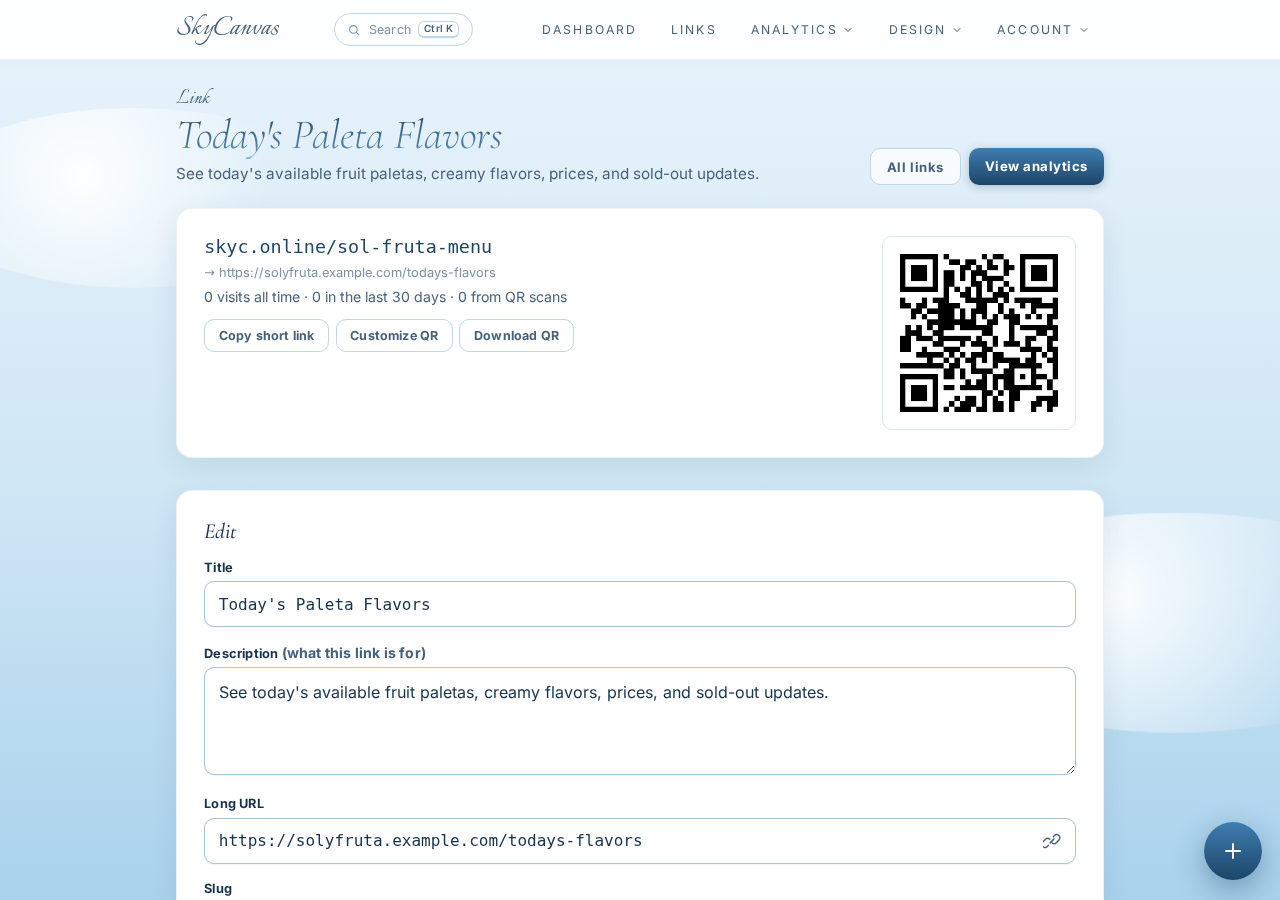
This was the moment the workflow became practical. Marisol now had one compact address for counter signs, catering cards, and conversations with customers. Someone who did not want to scan could type skyc.online/sol-fruta-menu, while everyone else could use the QR.
The destination page held the changing information. Marisol could update flavors, prices, and sold-out notices on that page without replacing the counter QR. As long as the menu remained at the same destination URL, the printed code kept doing its job.
Before downloading it, she wanted the QR to feel connected to the bright fruit colors of Sol y Fruta.
4. Customize the QR in brand colors
On the link page, Marisol opened the QR customization controls. She applied a deep berry pink, #C2185B, and a warm orange, #F28C28, to the QR modules. She kept the background white for clear contrast.
The live preview showed the result as she adjusted the colors.
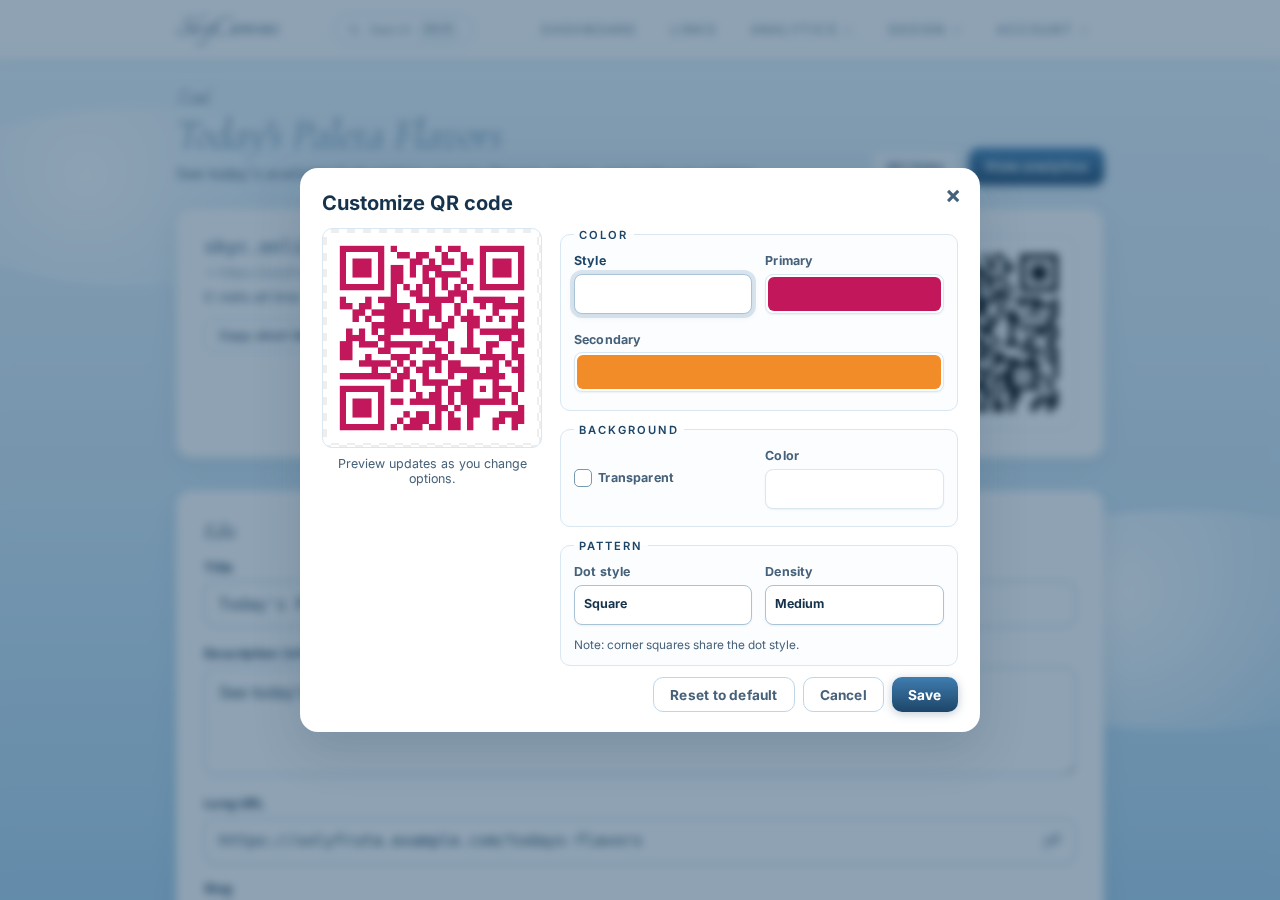
The finished QR felt at home beside photos of watermelon, mango, and prickly pear paletas. More importantly, it remained easy to see against a clean white background.
Marisol could now download the QR as a PNG and place it on a small counter card. A simple prompt such as “Scan for today’s flavors” would tell customers exactly what to expect.
Before printing a batch, it is worth testing the downloaded QR with more than one phone. Test it at the approximate size and viewing distance customers will encounter. Good contrast, a clear margin, and straightforward wording help make scanning feel effortless.
5. Read the menu activity in analytics
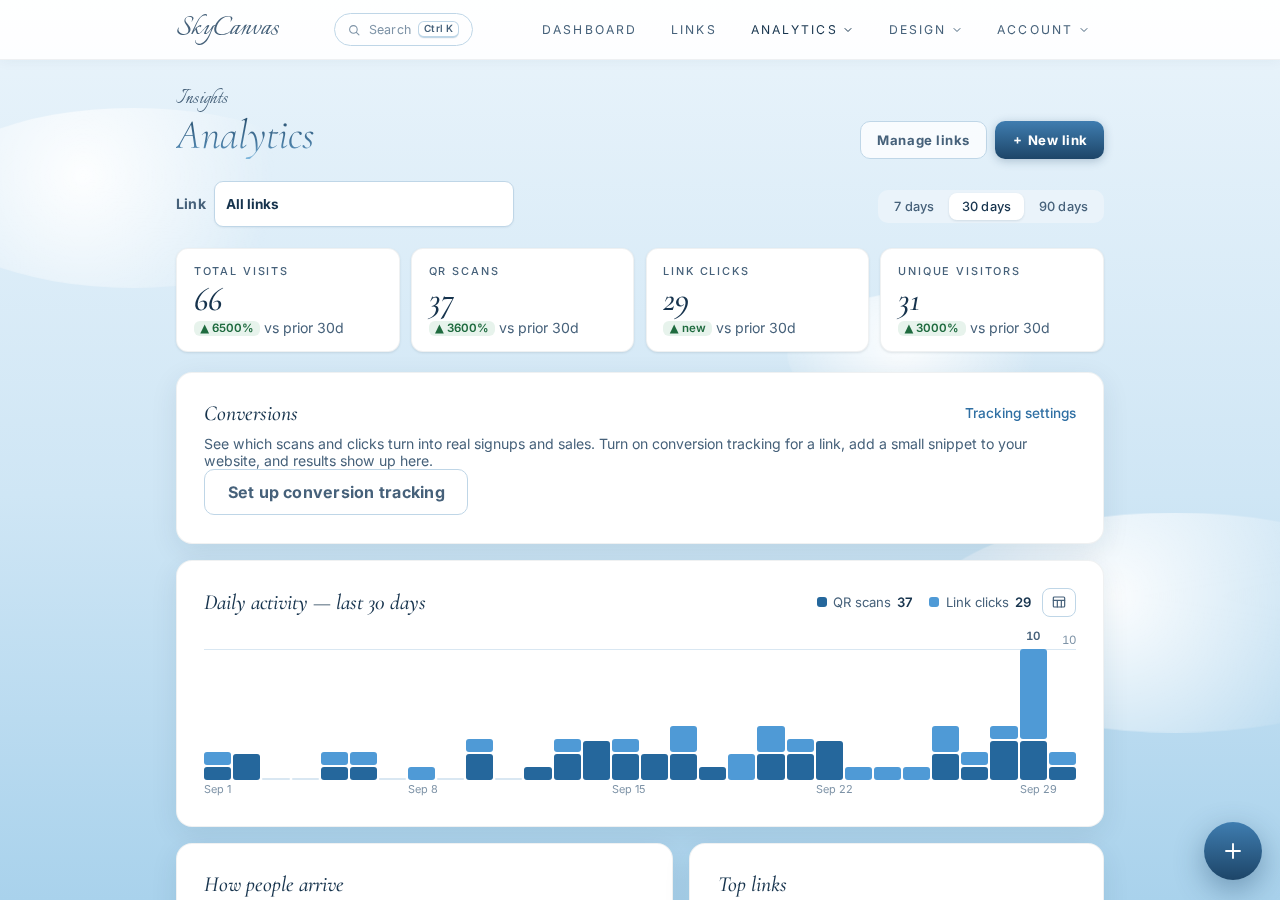
Once the QR was in use, Marisol opened Analytics and selected the paleta menu link. The page brought together activity for that specific destination, including clicks, QR scans, devices, conversions, and changes over time.
The distinction between clicks and scans was especially useful. A scan could come from the physical counter card, while a click could come from the short link shared online. Device information added another layer of context about how visitors viewed the menu.
Marisol did not need to turn every number into a major decision. The first goal was simpler: confirm that customers were using the QR. From there, she could watch for patterns.
A lift in scans during a market or festival could show that the sign was earning attention. Strong activity around lunch could suggest the best time to refresh sold-out notes. If people kept scanning after an event, that could indicate interest in future pop-ups or catering.
One small sign, much less menu confusion
The counter card no longer needed to list every flavor. It only needed to offer one clear action. Customers could scan, see what was available, and decide before reaching the front of the line.
For Marisol, the biggest win was continuity. The menu could stay seasonal and responsive without making the printed materials feel temporary. The branded QR also gave Sol y Fruta Paletas a polished touch while the analytics showed whether people were engaging with it.
Ready to create a short link and QR for your own changing menu? Start free with SkyCanvas.
Sol y Fruta Paletas is a fictional business we created to show a real SkyCanvas workflow. Every screenshot is real, captured live while writing this guide.